

Merging Duplicate People
Sometimes the same person ends up in Empower twice. Maybe a visitor filled out a card twice, or someone was added once as "Sam" and again as "Samuel." Merging combines the two records into one, so their contact information stays together in one place.
Before you start
There’s no undo button for a merge, so take a minute to make sure the two records really are the same person.
Decide which record to keep. Empower calls it the primary person. The other record, the secondary person, is merged into it and then removed.
Keep the record with the most complete, most correct information as the primary person.
Merge two people
From the top menu, click Membership, then People.
Open the record you want to remove (the secondary person).
Click More, then Merge.
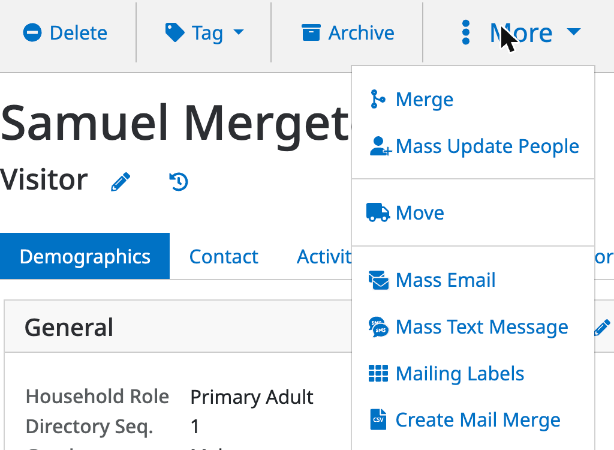
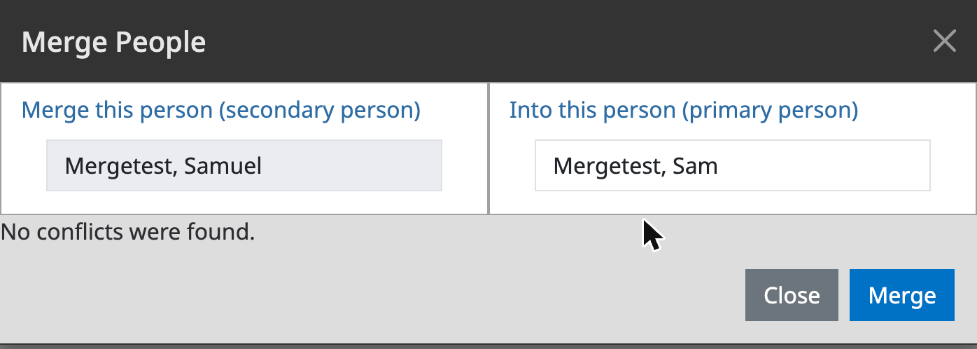
The Merge People window opens with that person on the left, under Merge this person (secondary person).
Under Into this person (primary person), start typing the name of the record you want to keep, then pick it from the list.
Empower checks the two records for conflicts.
If it says No conflicts were found, the records fit together cleanly.
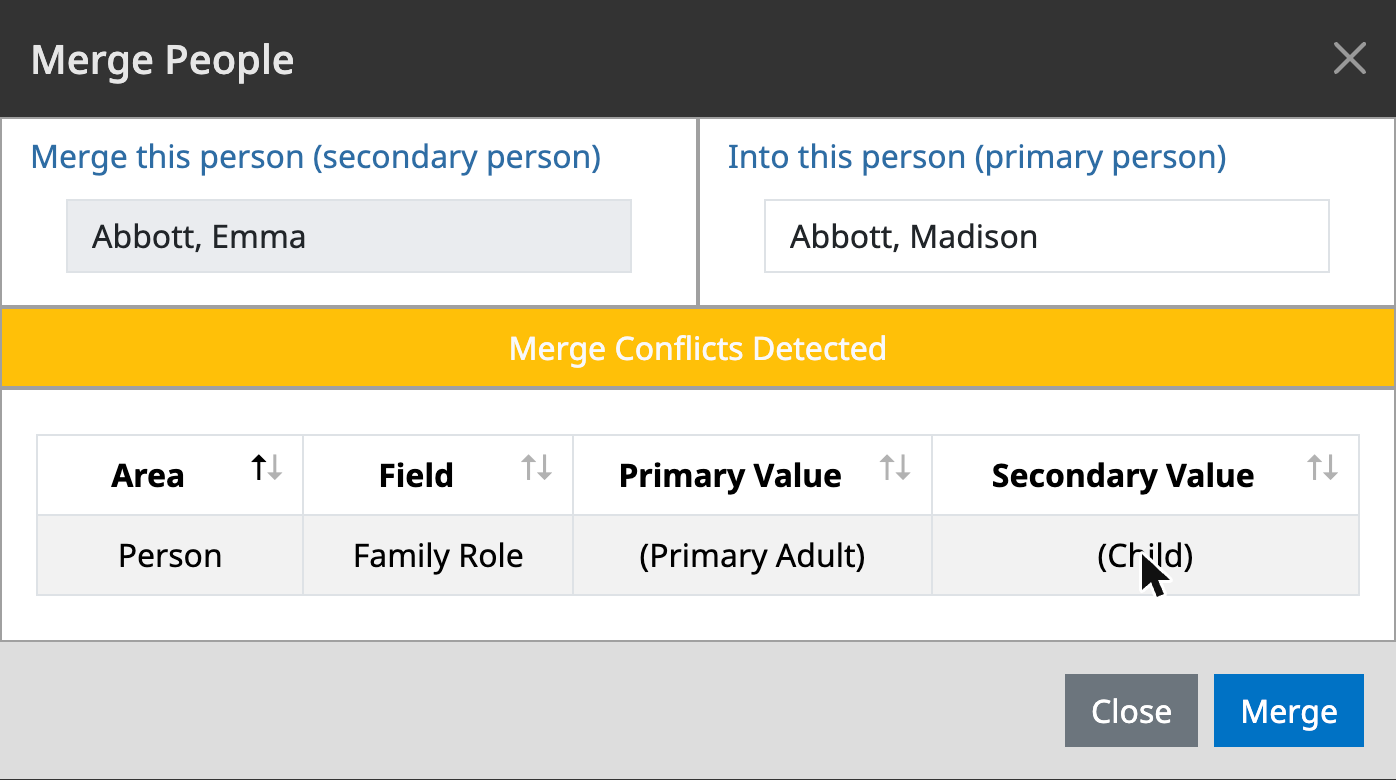
If it shows Merge Conflicts Detected, read the table. It lists each field where the two records don't match, with the primary value and the secondary value side by side. If something looks wrong, click Close, fix the record, and start again.
When you're sure, click Merge.
What happens after the merge
The secondary person is removed from your People list.
Contact information from the secondary record, such as a phone number, is added to the primary person.
The primary person keeps their own name.
If the secondary person was the only member of their household, that empty household is removed too.
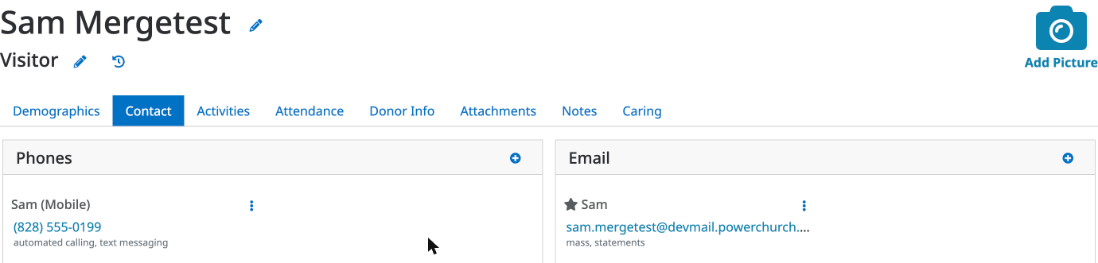
After merging, open the primary person and check the Contact, Activities, and Donor Info tabs to make sure everything looks right.
Prevent duplicates
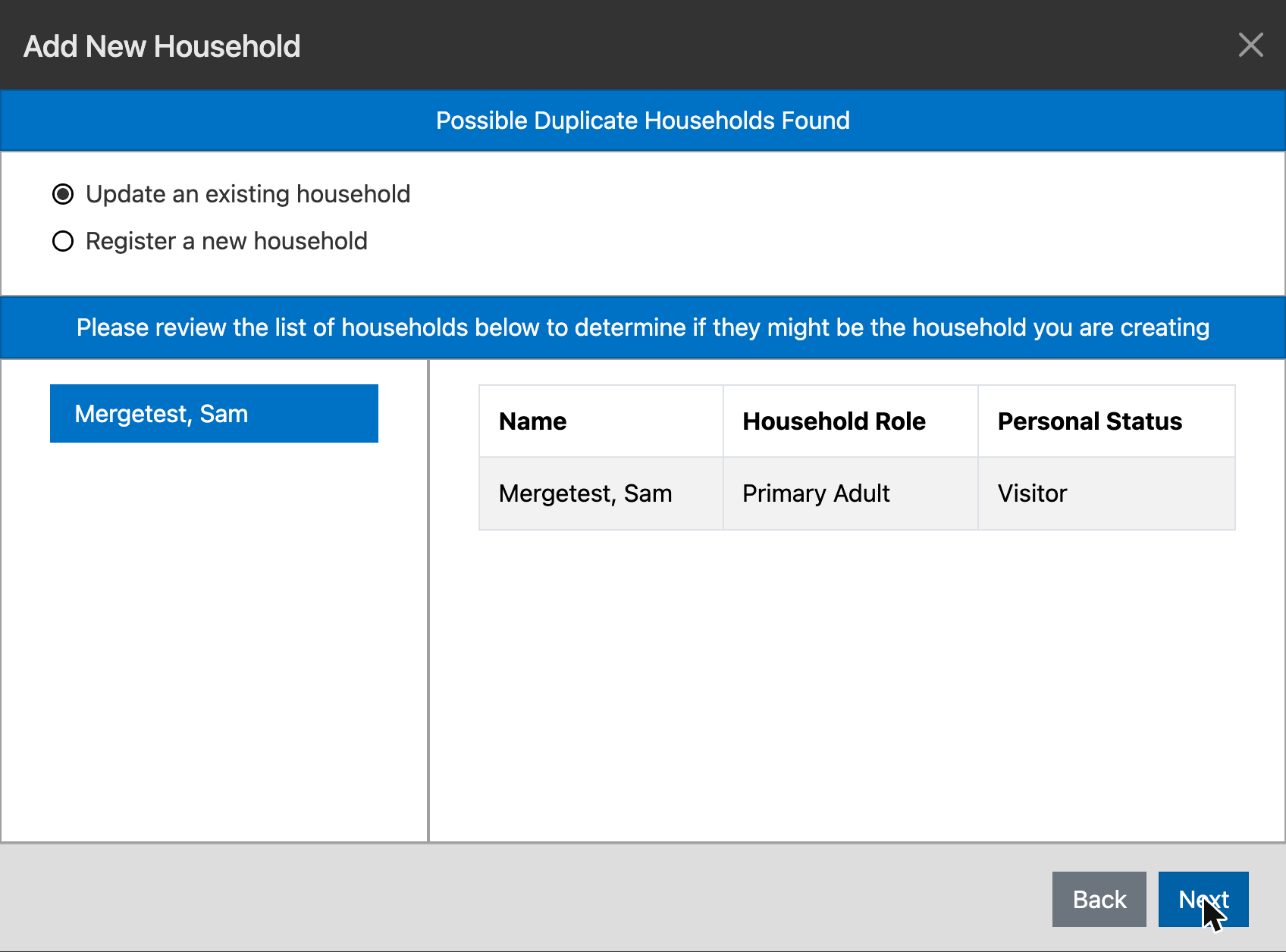
When you add a household, Empower looks for households with similar names. If it finds any, it shows Possible Duplicate Households Found and lists them. If the person is already there, choose Update an existing household instead of Register a new household.
Good to know
If someone simply belongs in a different household, you don't need a merge. Use More, then Move, to move them.
Merging people is different from combining two households. This article covers people only.