

Set Up Vanco and Import Online Gifts
If your church uses Vanco for online giving, Empower can bring those gifts straight into your contribution records, so nobody has to retype them.
Before you start
You'll need a User ID, Client ID, and password from Vanco. These aren't your regular Vanco login. Call Vanco Customer Care at (800) 675‑7430 and ask for API access.
Connect Vanco (one time)
Go to Contributions > Import.
Click Add New Import Source.
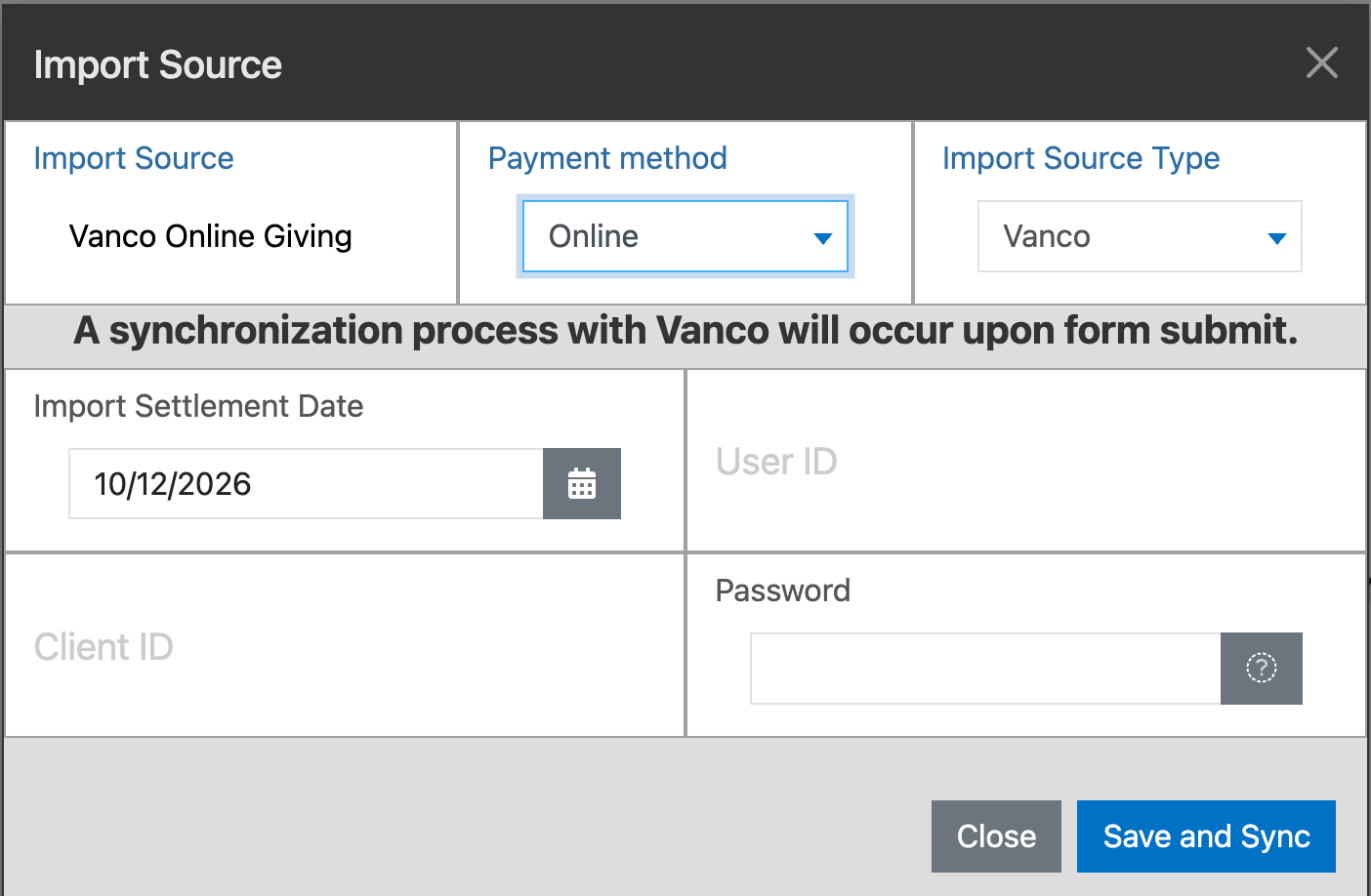
Give the source a name, such as Vanco Online Giving.
Choose a Payment method, such as Online.
For Import Source Type, choose Vanco.
Set the Import Settlement Date, the date Empower should start importing from. It's set to today unless you change it.
Enter the User ID, Client ID, and Password from Vanco.
Click Save and Sync. Empower connects to Vanco and brings in your gifts.
Match your givers the first time
Vanco's giver IDs won't match Empower's the first time, so you'll match each giver once.
Open your Vanco import source and go to the Unmatched Donors tab.
Click a donor, then click Locate Existing Donor to find their giving unit, or Add New Donor for someone new.
Click Confirm Match.
Empower remembers each match, so those givers come in automatically on future imports.
Finish the import
Go to the Contributions tab of the import source and click Process Imported Contributions, then confirm. The gifts are now part of your contribution records and will show on giving statements.
Use a different giving service?
You can still import gifts from almost any service by file. See Importing Contributions from a Third-Party.
Related articles
Importing Contributions from a Third-Party
Understanding Donors and Giving Units
Creating a New Deposit