

Event Reports
Use the Upcoming Events report to print or share a list of your church's events for any date range, like this week's services or next month's calendar.
Open the report
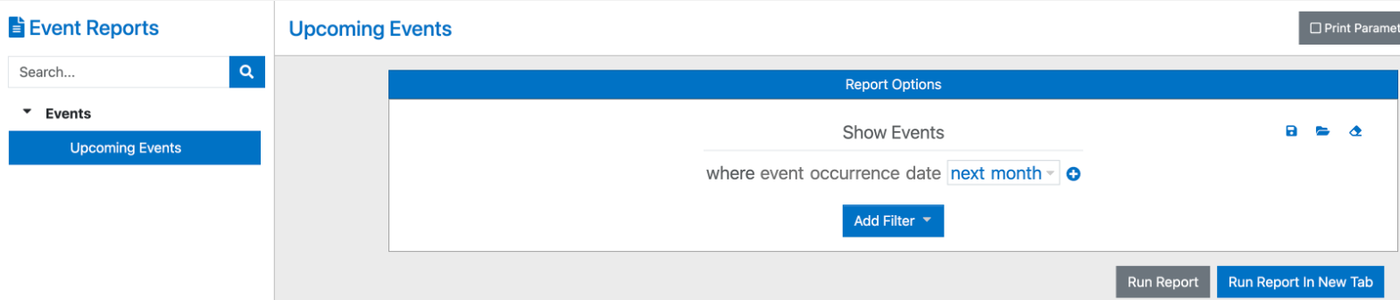
Go to Events > Reports.
In the list on the left, select Upcoming Events.
Choose which events to include
Next to where event occurrence date, pick a date range. Choices include This week, Next month, Next _ days, and Between two dates.
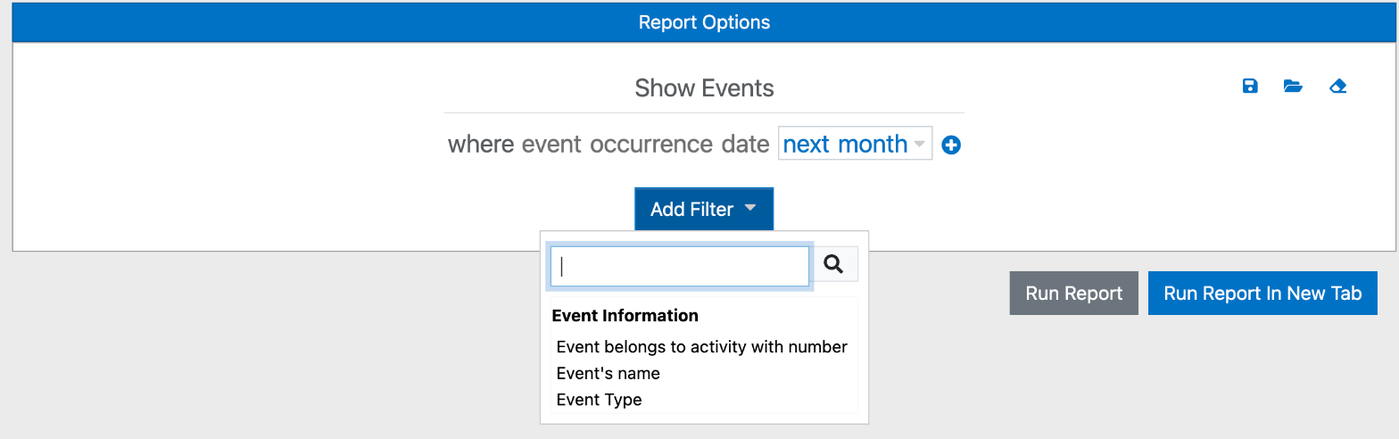
To narrow the list, click Add Filter and choose Event Type, Event's name, or Event belongs to activity with number.
Click Run Report. To keep your settings open in this tab, click Run Report In New Tab instead.
The report lists each date, with the time and name of every event that day.
Print, save, or email the report
Use the toolbar above the report:
Print (printer icon) prints the report.
Export (arrow icon) saves it as a PDF, Excel (XLS or XLSX), Word (DOCX), CSV, or another format.
Email (envelope icon) sends it by email.
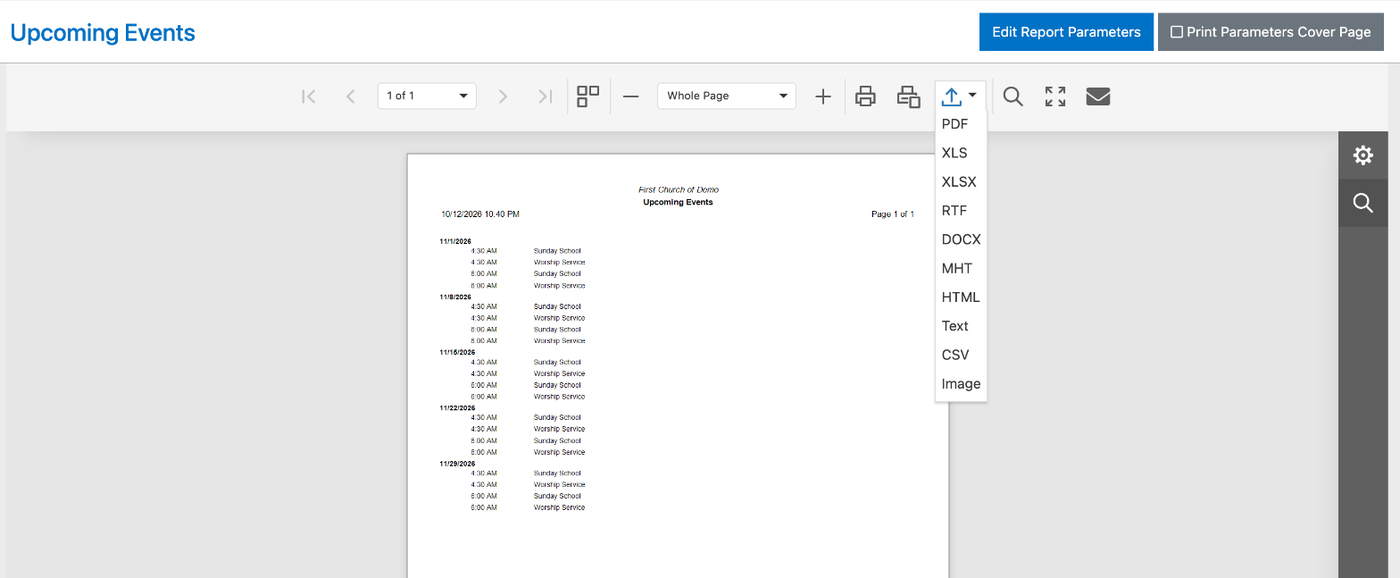
To change the date range or filters, click Edit Report Parameters.
Reuse your settings
Next to Show Events, click Save to keep these filters for next time, Load to open filters you saved earlier, or Reset to start over.
Tip: Check Print Parameters Cover Page to add a first page that shows the date range and filters you used.
Related articles
An Overview of Events
Adding a New Event
Printing, Saving, Exporting, and Sending Reports