

Using Your Church's Member Portal
Your church's member portal lets you keep your own contact information up to date, see your giving, and look up other members in the church directory. It works on your phone, tablet, or computer.
Signing in
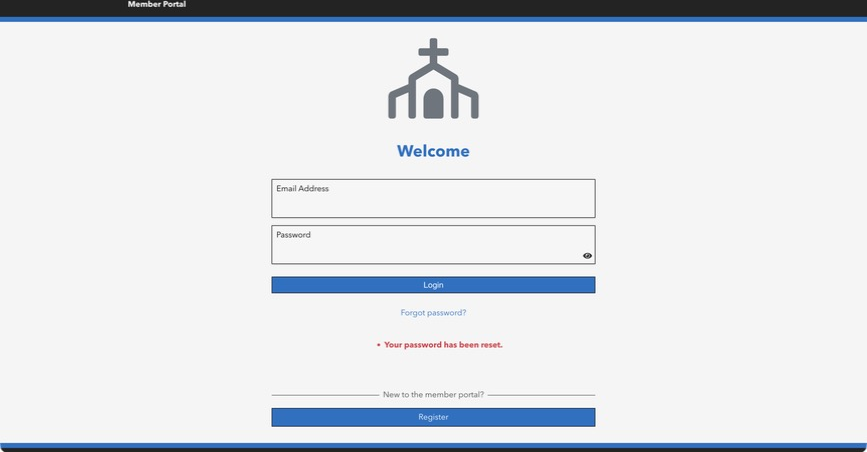
Your church will email you an invitation. Click Request member portal access, then follow the email you get to set your password. It needs at least 6 characters, with a capital letter, a lowercase letter, and a number.
After that, sign in at your church's Empower address followed by /Members, for example yourchurch.empowerchms.com/Members. If you end up on the staff login page instead, click Member Portal Login at the bottom. Forgot your password? Click Forgot password? on the sign-in page.
Your household
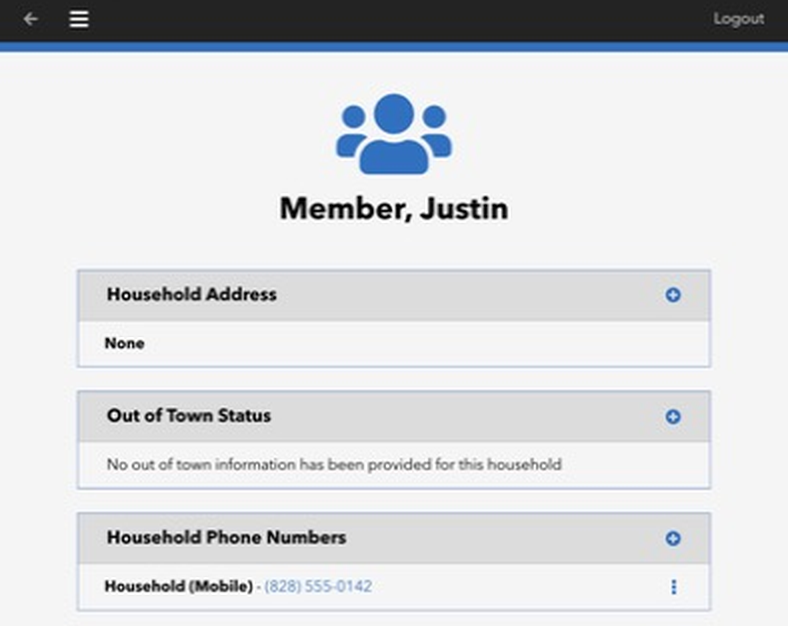
When you sign in, you'll see your household's information: address, out-of-town dates, phone numbers, email addresses, and whether you appear in the online directory. Tap + to add something, or the three dots next to an item to change it.
Your church may review changes before they're saved. If so, a change shows (Pending approval) until someone at the church accepts it.
The menu
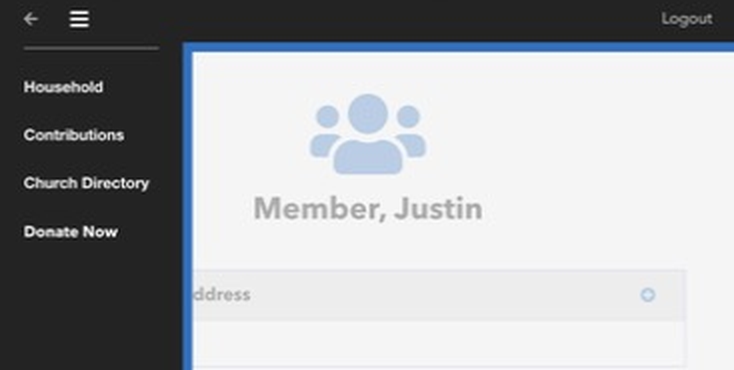
Tap ☰ at the top to move around. Depending on how your church has set things up, you may see:
Household: your information.
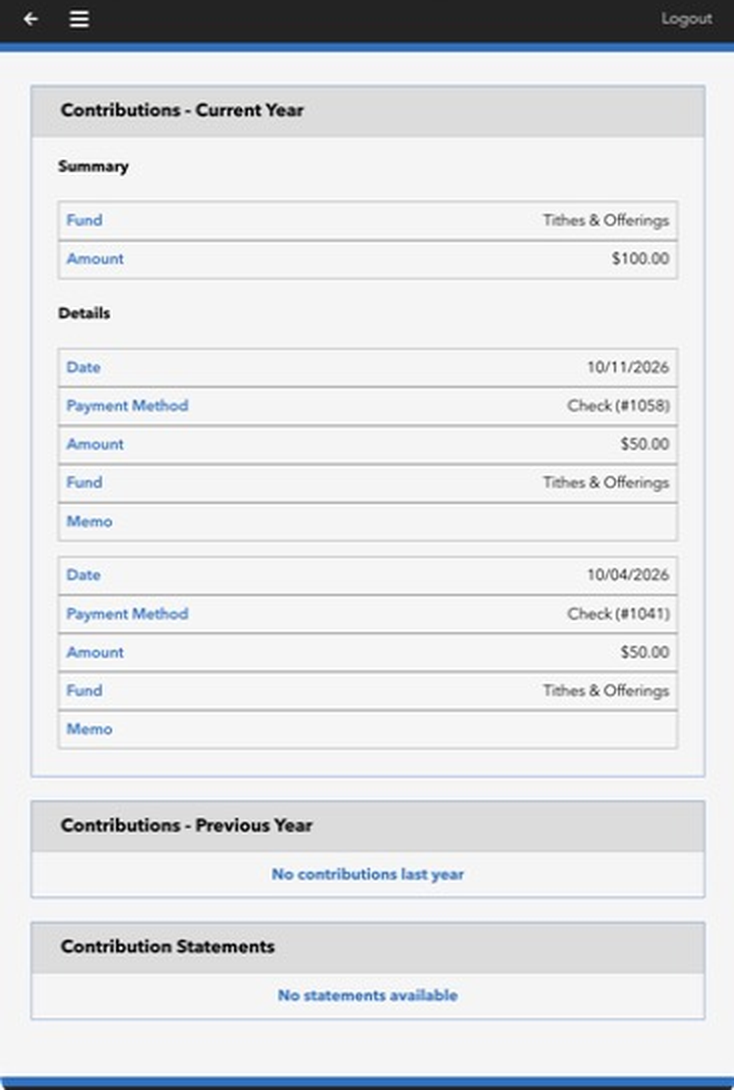
Contributions: your gifts this year and last year, by fund, with the date, payment method, and amount of each gift. Your year-end giving statements appear here too, once the church makes them available.
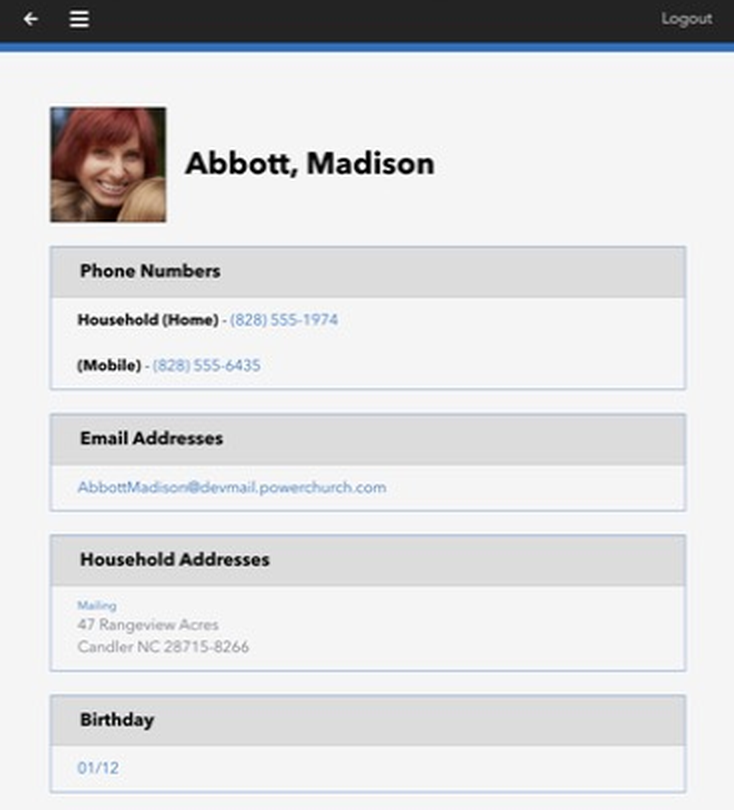
Church Directory: search for other members and see their phone numbers, email, address, and birthday (month and day only).
Donate Now: a link to your church's online giving page.
Questions about what you see in the portal? Contact your church office.