

Sending and Receiving Text Messages
Empower can send text messages to your people from your church's own texting number. You can text one person, or send the same message to a group, such as everyone in an activity or all your members. When someone replies, you'll see it in their text conversation in Empower.
Before you start
Check your texting settings. From the top menu, click Utilities, then Options. Under Communications, click Text Messaging. You'll see:
Text Messaging Number: the phone number your texts come from.
Default Area Code: used for any phone number in Empower that's missing an area code.
Outgoing Voice Message: what someone hears if they call your texting number. It can't take voice calls, so this message points them to the church office.
Maximum Segment Count: the longest a single text is allowed to be. See "How long can a text be?" below.
Make sure the right phone numbers are set up for texting. On a person's Contact tab, each phone number lists what it's used for, such as "text messaging," under the number.
Text one person
Open the person's record and click the Contact tab.
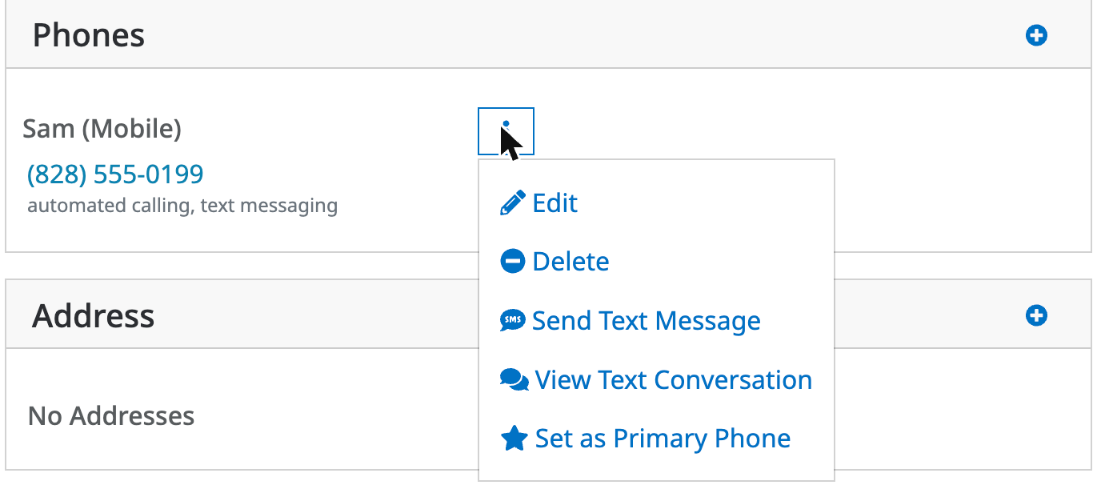
Click the three dots next to their mobile number.
Click Send Text Message to write a new text, or View Text Conversation to see past texts and replies and answer them.
Send a text to a group
From the top menu, click Membership, then People (or Households).
Click More, then Mass Text Message.
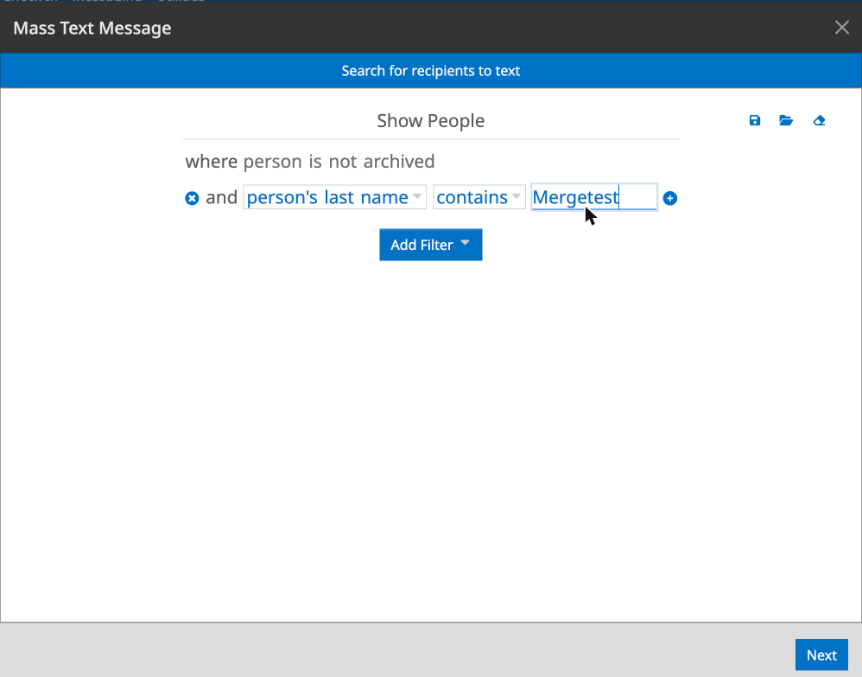
Choose who to text. Click Add Filter to narrow the list, for example by personal status or activity. Then click Next.
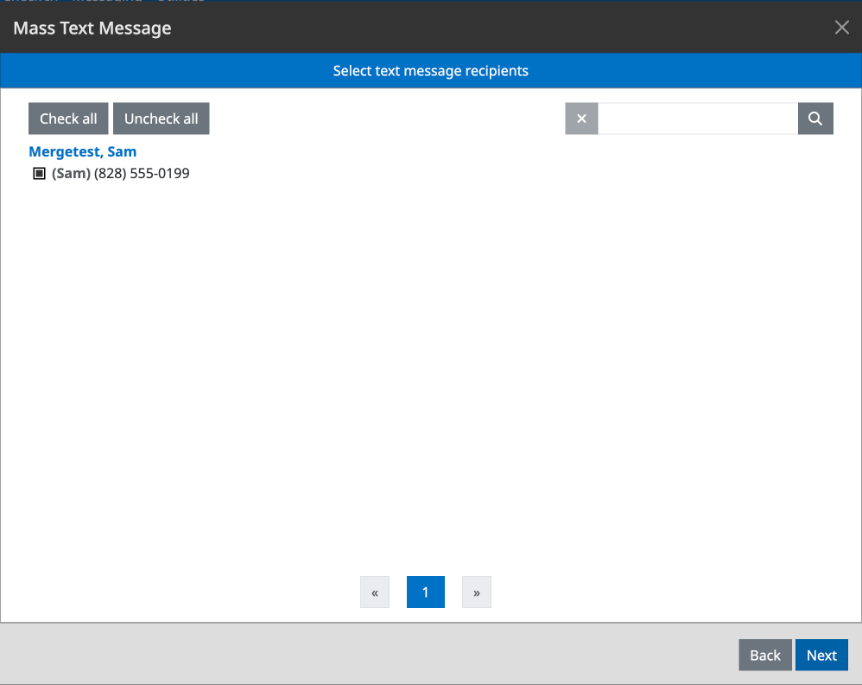
Check the recipient list. Each person's textable numbers are listed and checked. Uncheck anyone you want to leave out, or use Check all and Uncheck all. Click Next.
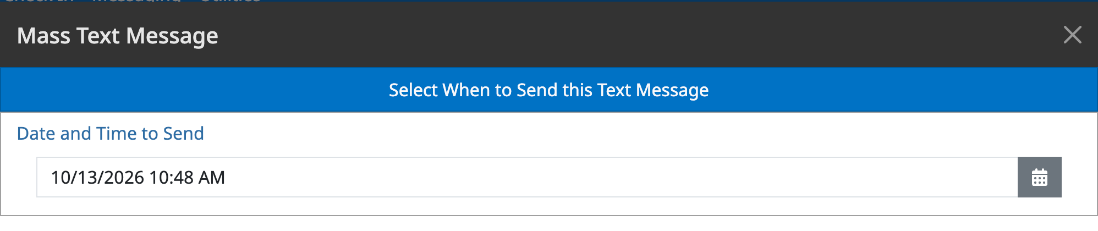
Choose when to send. The date and time start at right now. To schedule the text for later, pick a new date and time. Click Next.
Write your message in Text Body. The preview shows how it will look on a phone.
Use Merge Field to add details that change for each person, such as their first name.
Use Template to start from a message you've saved, or to save this one for next time.
Check Save as draft if you want to finish it later.
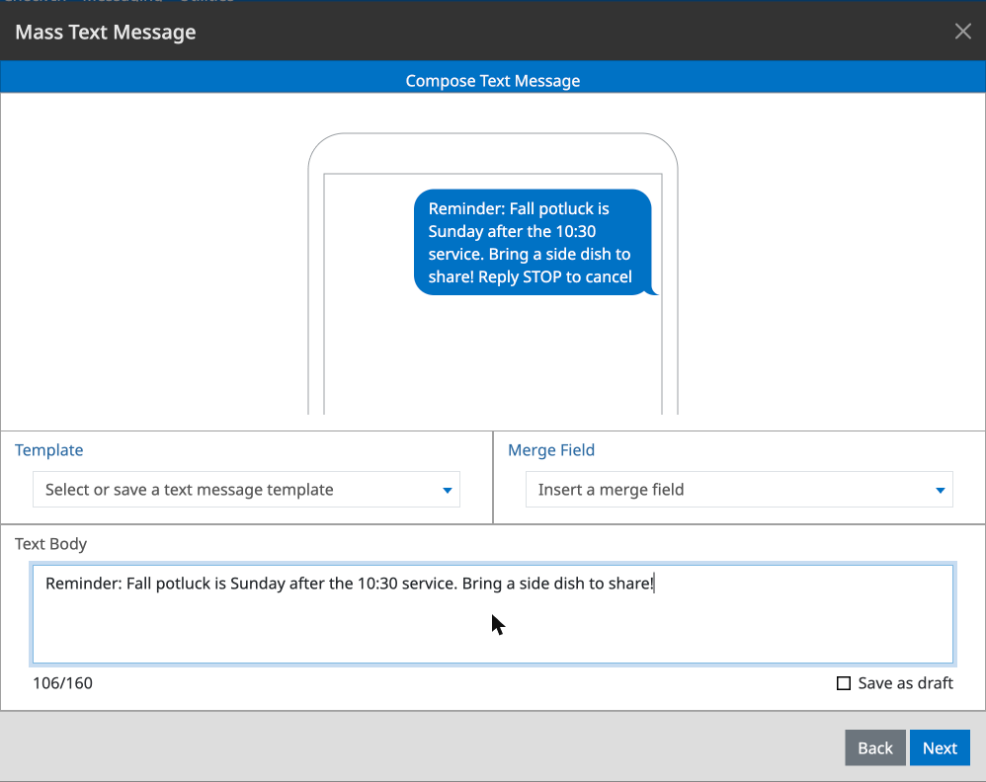
Click Next. On the Confirm Text Message screen, read the message one last time. When it's right, click Send.
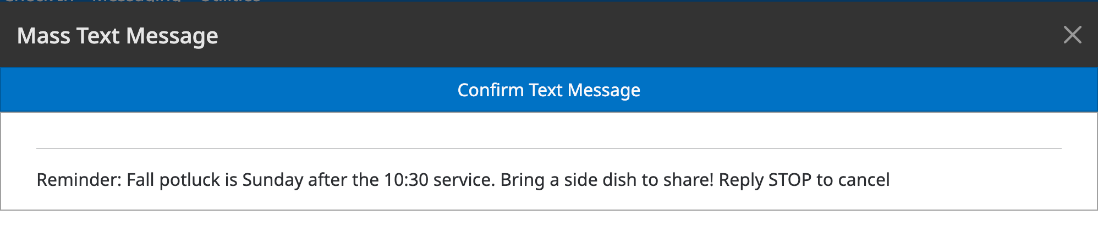
"Reply STOP to cancel"
Empower adds Reply STOP to cancel to the end of every text, so people can opt out of texts from your church. It counts toward the length of your message, which is why the counter starts at 21 before you type anything.
How long can a text be?
One text message holds 160 characters. The counter under Text Body shows how many you've used. A longer message is split into pieces called segments, which are put back together on the person's phone. Each segment is billed, so a two-segment text costs more than a one-segment text. Merge fields, like names, can change the length for each person.
The Maximum Segment Count setting limits how long one text can be. Keeping messages short is the easiest way to stay inside it.
See what you've sent
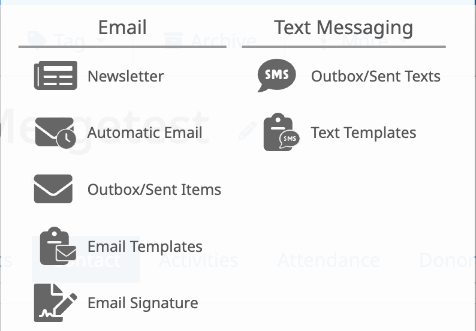
From the top menu, click Messaging, then Outbox/Sent Texts to see texts that are scheduled or already sent. Text Templates, in the same menu, holds your saved messages.
Good to know
A text can't be taken back once it's sent. Check the recipient list and the Confirm screen carefully, especially for large groups.
Replying STOP is how people opt out of your church's texts, so honor it. Don't add them back for texting without their permission.
Each church gets 100 free text segments a month. After that, each segment costs 3 cents.