

Approving Member Portal Changes and Login Requests
Turn review on or off: go to Utilities > Options > Member Portal, click the pencil icon on Member Portal Status, and set User Changes Require Review.
When a member changes their information
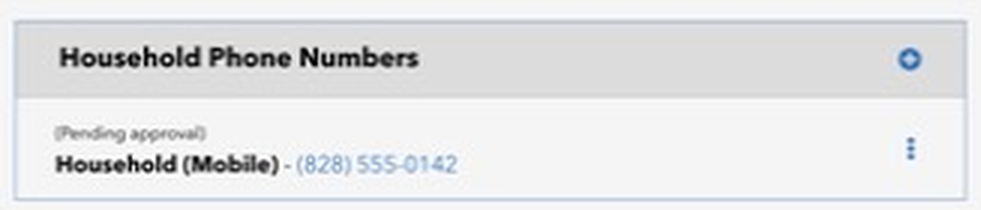
After a member saves a change, like a new phone number, it shows on their page marked (Pending approval).
On your Dashboard, find the Pending Portal Changes box. Each change lists the member's name, what they changed (for example "Phone"), and the date.
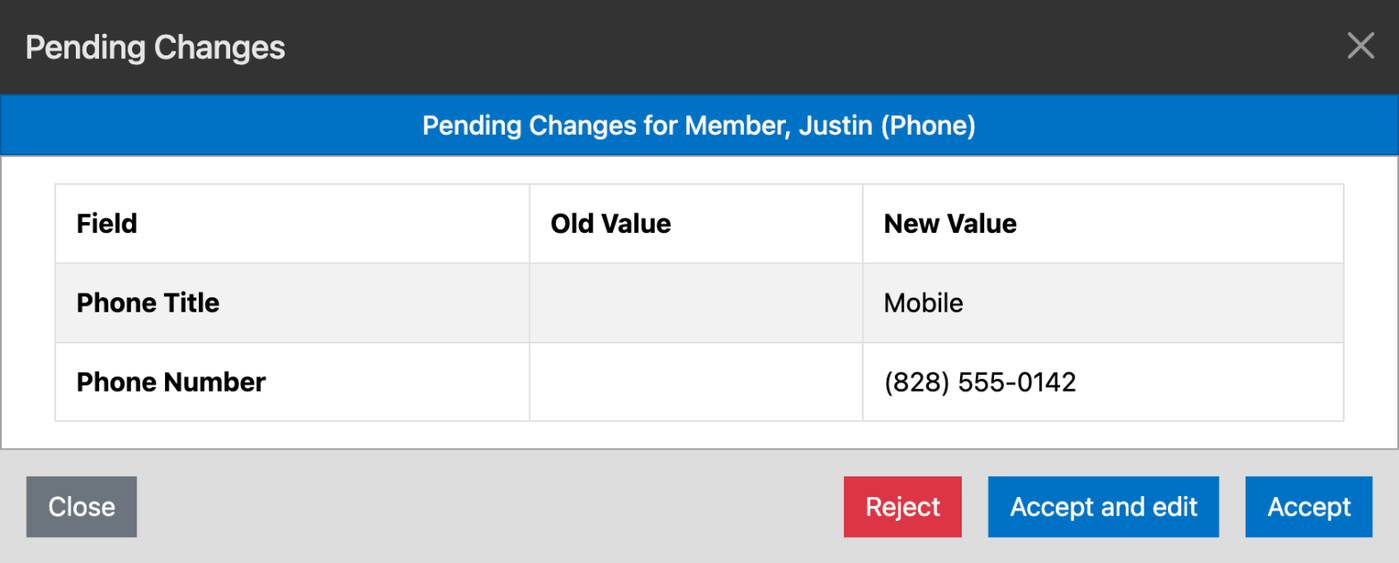
Click a change to open it. Empower shows what was there before and what the member changed it to, in the Old Value and New Value columns.
Choose:
Accept saves the change as the member entered it.
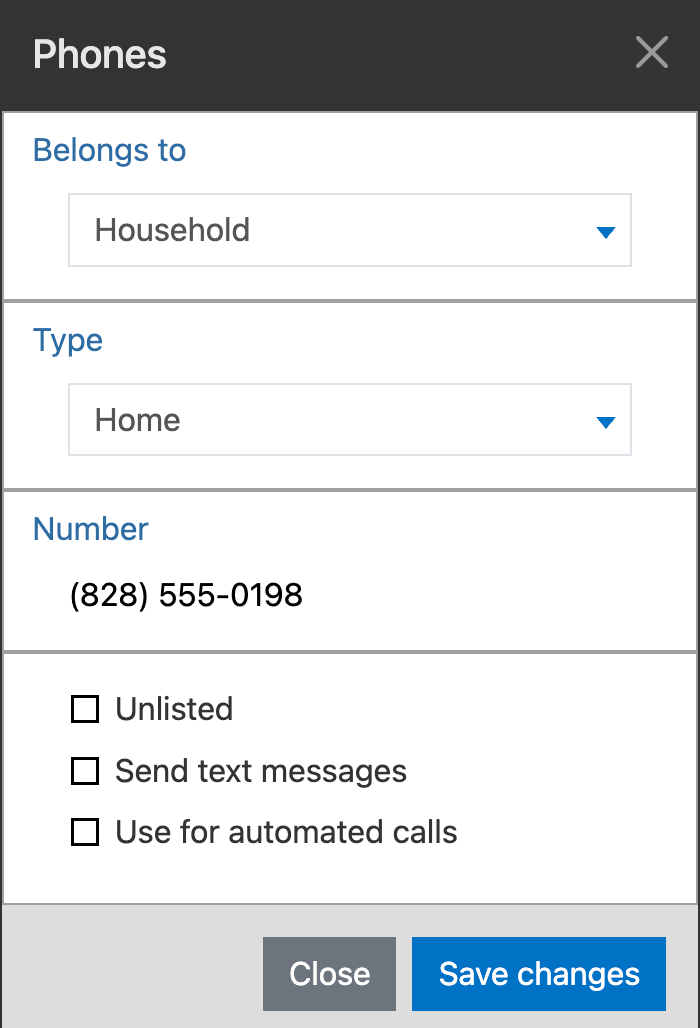
Accept and edit saves it and opens it so you can adjust it first, for example to mark a number Unlisted. Click Save changes when you're done.
Reject leaves the record as it was.
Once you handle a change, it drops off the list, and the member no longer sees "(Pending approval)".
When someone asks for a login
If their email matches a person already in Empower with a status that's allowed to sign in, Empower accepts the request right away and emails them a link to set a password.
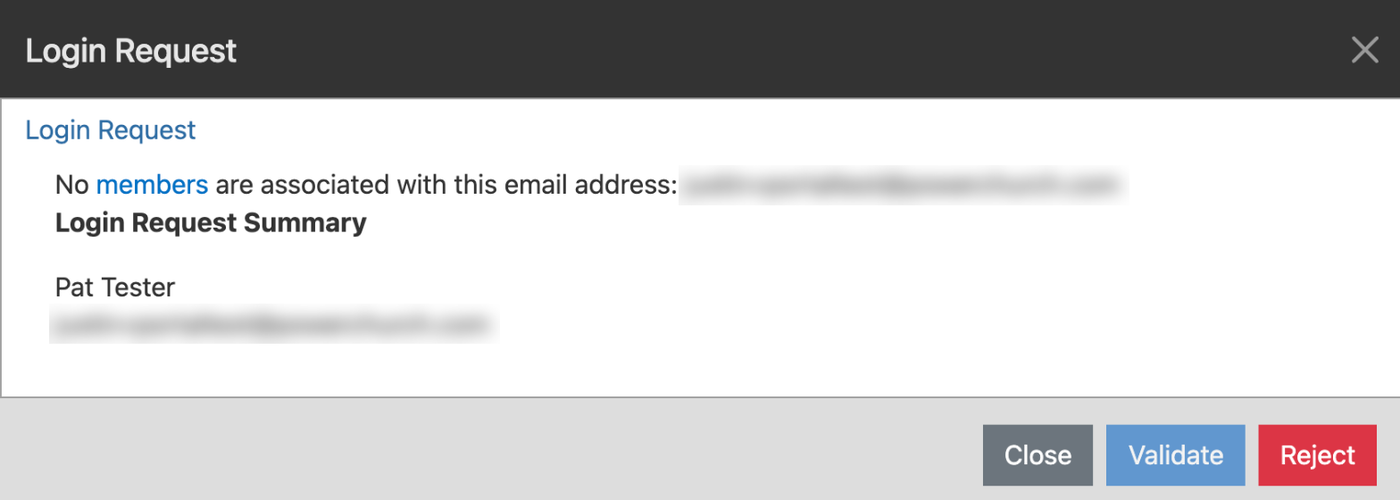
If it doesn't match anyone, the request appears in the Pending Login Requests box on your Dashboard. Click it to see the name and email. Validate stays unavailable until that email belongs to a person in Empower, so add the email to their record (or add them as a new person) first. To turn the request down, click Reject.
Heads-up: right now, someone whose email doesn't match sees a message saying the process "was unable to complete". Their request did go through, so if a new person calls about it, you can reassure them.